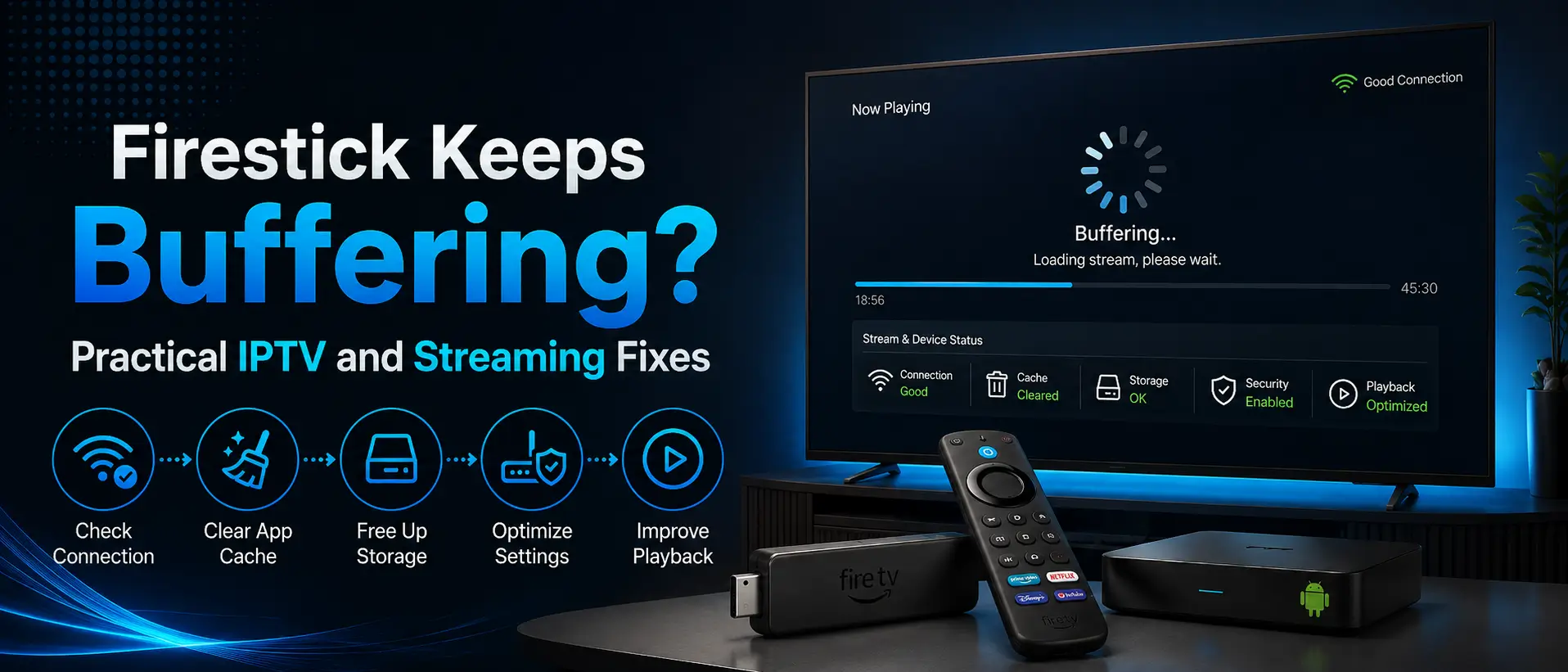
Firestick Keeps Buffering? Practical IPTV and Streaming Fixes
In this guide
Firestick buffering usually comes from weak Wi-Fi, limited device storage, overloaded apps, outdated software, router filtering, or temporary stream problems. Start with a full restart, test another channel or app, and try a mobile hotspot. That quick hotspot test can help separate a service problem from a home-network or internet-provider problem.
This guide explains practical fixes for Firestick buffering, freezing, slow menus, and IPTV playback problems. Work through the steps in order. Most users do not need to reset the entire device.
Important: Do not clear app data, uninstall the player, or factory-reset the Firestick before saving your login details. Clearing app data removes usernames, passwords, playlists, favorites, and settings.
Quick Firestick Buffering Checklist
- Restart the IPTV app and Firestick.
- Restart the modem and router.
- Test another channel, category, movie, or app.
- Check available Firestick storage.
- Clear the IPTV app cache, not its data.
- Improve the Wi-Fi signal or test Ethernet.
- Test the same service with a mobile hotspot.
- Update Fire OS and the IPTV player.
- Check router security, firewall, and parental-control settings.
- Contact support with the device, app, and network-test results.
Why Does a Firestick Keep Buffering?
Buffering means the Firestick is not receiving or processing video quickly enough to keep playback continuous. The cause is not always internet speed. A fast connection can still buffer when Wi-Fi is unstable, the Firestick is low on storage, the app cache is damaged, the router filters the connection, or the selected stream has a temporary problem.
Common causes include:
- Weak or unstable Wi-Fi
- Network congestion
- Low Firestick storage
- Too many background apps
- Corrupted or oversized app cache
- Outdated Fire OS or IPTV player
- Router firewall, parental controls, or security filtering
- Internet-provider filtering or routing problems
- Temporary channel, playlist, or server load
- Unsupported player or decoder settings
1. Restart the App, Firestick, Modem, and Router
Start with a complete restart. Closing and reopening the app is not always enough because Firestick apps can remain active in the background.
Restart the Firestick
- Open Settings.
- Select My Fire TV.
- Select Restart.
- Wait for the Firestick to reboot fully.
You can also unplug the Firestick power cable for about 30 seconds, then reconnect it.
Restart the Network
- Unplug the modem and router.
- Wait about 60 seconds.
- Reconnect the modem first.
- Wait until the modem is online.
- Reconnect the router.
- Wait for Wi-Fi to return, then test again.
2. Test More Than One Channel or Video
Do not judge the entire service from one channel, movie, or series episode. A single source can have a temporary issue while other content works normally.
- Test another channel in the same category.
- Test a different category.
- Test a movie or series title.
- Test another compatible IPTV player.
- Test a normal streaming app such as YouTube.
If only one channel buffers, the problem is likely limited to that source. If every app buffers, focus on the Firestick or network.
3. Test with a Mobile Hotspot
A mobile-hotspot test is one of the fastest ways to identify a home-network or internet-provider problem.
- Enable the hotspot on a phone with mobile data.
- Connect the Firestick to the hotspot.
- Open the same IPTV app.
- Test the same channel or video for several minutes.
If playback works correctly on the hotspot but buffers on home Wi-Fi, the IPTV account and app are probably working. The likely cause is the router, Wi-Fi signal, firewall, parental controls, security filtering, or internet-provider routing.
If both connections buffer, continue checking the Firestick, player settings, and content source.
4. Improve the Firestick Wi-Fi Connection
Wi-Fi quality matters more than the maximum speed shown in a speed test. Video can buffer when signal strength changes repeatedly, even when the average speed looks high.
Use the Correct Wi-Fi Band
- 5 GHz: usually faster and better for streaming when the Firestick is close to the router.
- 2.4 GHz: usually reaches farther and passes through walls better, but may be more congested.
Test both bands when available. Keep the Firestick away from metal surfaces, enclosed cabinets, and other electronics that can interfere with Wi-Fi.
Move the Router or Firestick
Reduce the distance and number of walls between the router and Firestick. Use the HDMI extender supplied with many Firestick models to move the device away from the back of the television.
Test Ethernet
A compatible Ethernet adapter can provide a more stable connection than Wi-Fi. Ethernet does not guarantee that every stream will work, but it removes wireless interference from the test.
5. Check Firestick Storage
Low storage can make Firestick menus slow, cause apps to freeze, and reduce playback stability.
- Open Settings.
- Select My Fire TV.
- Select About.
- Open Storage.
Remove unused apps and downloaded APK files. Keep free space available for app cache, updates, and temporary playback files.
6. Clear the IPTV App Cache
Cache stores temporary files. A damaged or oversized cache can cause slow loading, freezing, or repeated buffering.
- Open Settings.
- Select Applications.
- Select Manage Installed Applications.
- Choose the IPTV player.
- Select Force Stop.
- Select Clear Cache.
- Reopen the app and test playback.
Do not select Clear Data unless you have saved the login details and intend to set up the app again.
7. Close Unused Background Apps
Firestick devices have limited memory. Multiple apps running in the background can make the interface slow and interrupt playback.
Force-stop unused apps through Settings → Applications → Manage Installed Applications. Restarting the Firestick also clears many background processes.
8. Update Fire OS and the IPTV Player
Old software can contain playback, network, or compatibility problems.
Check Fire OS Updates
- Open Settings.
- Select My Fire TV.
- Select About.
- Select Check for Updates.
Update the IPTV App
Use the app store or the same trusted source used for the original installation. Do not install modified APKs or “Premium unlocked” versions.
Save login details before updating. Some manual installations may require reinstalling the app.
9. Check IPTV Player Settings
Player options vary by app. A setting that helps one device can make another device worse, so change one option at a time and test.
Hardware and Software Decoding
Some players offer hardware and software decoder options. Hardware decoding is usually efficient, but a specific stream may work better with another decoder. Switch the decoder only when playback problems affect certain channels.
Buffer Size
A larger buffer can help unstable connections but may increase the delay when changing channels. A smaller buffer can switch channels faster but may expose brief network drops. Start with the app default.
External Player
Test the stream with an external player when supported. If the external player works, the internal player or decoder setting may be the problem.
For TiviMate setup and settings, read the TiviMate Firestick and Android TV guide.
10. Check Router Security and Filtering
Router security features can block or interrupt IPTV server connections. Names vary by router and internet provider.
- Parental controls
- Website or content filtering
- Advanced security protection
- Threat-protection services
- Custom DNS filtering
- Firewall rules
- Blocked-device lists
Temporarily disable one relevant feature, test, then turn it back on if it did not cause the problem. Do not disable the entire router firewall permanently.
11. Firestick Buffers but the Internet Is Fine
A normal speed test does not prove that every route between the Firestick and a streaming server is stable. The issue may still involve Wi-Fi interference, router filtering, packet loss, device storage, decoder settings, or a route used by the internet provider.
- Test another channel.
- Test another app.
- Restart the Firestick and router.
- Clear the app cache.
- Test a mobile hotspot.
- Test Ethernet or another Wi-Fi band.
- Check router filtering.
- Contact support with the results.
12. Should You Use a VPN?
Do not use a VPN by default. A VPN can reduce speed, increase latency, or create new connection problems.
Use a VPN only when IPTVSMARTERZ support specifically asks you to test one. The mobile-hotspot test should normally come first because it gives clearer information about the home network or internet provider.
13. When to Contact IPTVSMARTERZ Support
Contact support after completing the basic restart, cache, storage, and hotspot checks.
- Firestick model
- IPTV player name
- Whether all channels or only some channels buffer
- Whether movies and series also buffer
- Whether a mobile hotspot works
- Whether other streaming apps work
- Your internet provider
- A screenshot of any error message
Do not send passwords publicly. Use the official IPTVSMARTERZ contact page.
Related IPTVSMARTERZ Resources
Firestick Setup Guide | TiviMate Setup Guide | IPTV Smarters Pro Guide | Channel Categories | Subscription Plans | Request a Free Trial
Frequently Asked Questions
Why does my Firestick keep buffering?
Common causes include unstable Wi-Fi, low storage, app cache, background apps, outdated software, router filtering, or a temporary stream problem.
Why is my Firestick buffering when the internet speed is good?
Speed tests show general download performance, not Wi-Fi stability, packet loss, router filtering, or the route to a specific server. Test a mobile hotspot and another app to narrow the cause.
Does clearing cache delete IPTV login details?
Clearing cache normally keeps login details. Clearing app data removes the app configuration and usually requires setup again.
Will restarting the Firestick fix buffering?
Restarting can clear background processes and temporary memory problems. Recurring buffering may require network, storage, or app checks.
Should I use 2.4 GHz or 5 GHz Wi-Fi?
Use 5 GHz when the router is nearby and the signal is strong. Test 2.4 GHz when the Firestick is farther away or separated by several walls.
Can router security block IPTV?
Yes. Parental controls, advanced security, content filtering, custom DNS, or firewall rules can block or interrupt specific server connections.
Does a mobile hotspot test prove the IPTV service works?
If the same device, app, account, and content work on a hotspot, that strongly suggests the home Wi-Fi, router, or internet-provider route is causing the problem.
Should I factory-reset my Firestick?
Use factory reset only as a last resort. It removes apps, accounts, and settings. Complete the restart, storage, cache, network, and hotspot checks first.
Continue with IPTVSMARTERZ
Ready to start streaming? Choose a plan, request a trial, or follow a setup guide for your device.