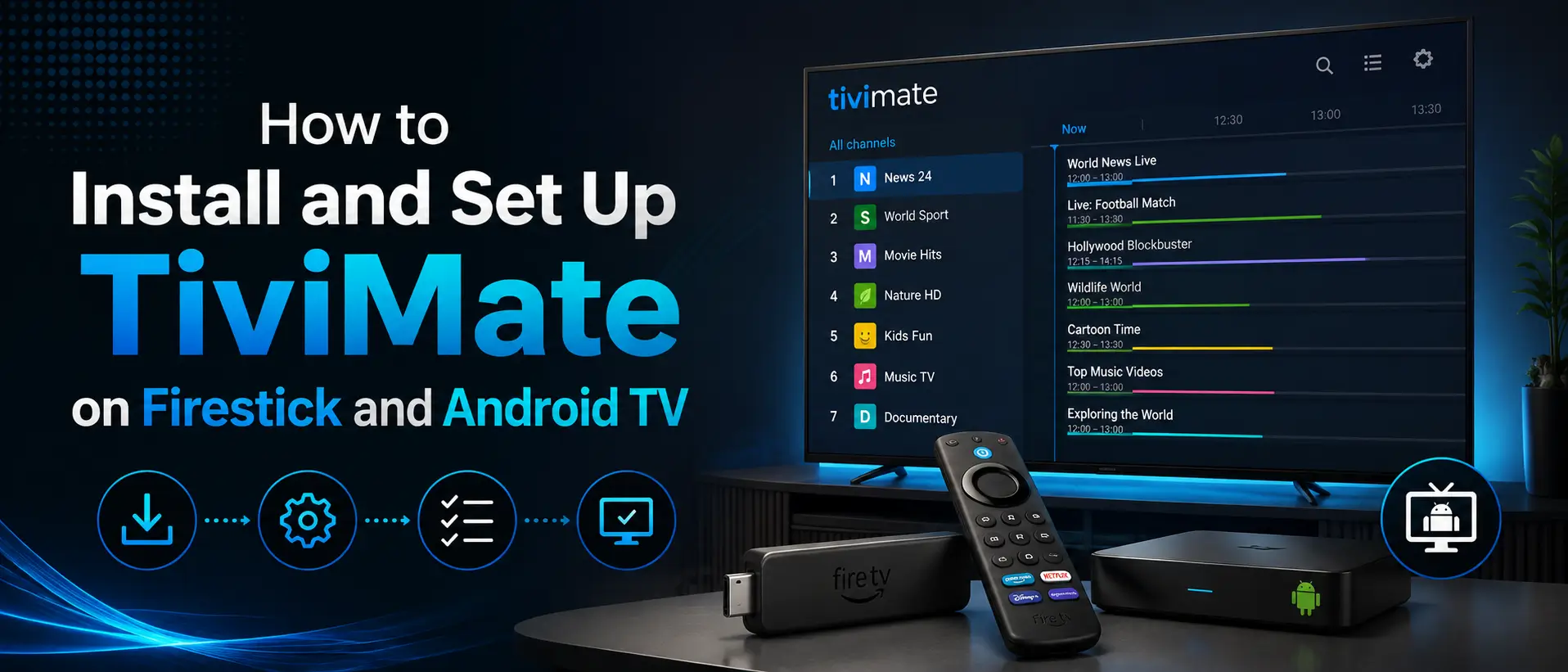
How to Install and Set Up TiviMate on Firestick and Android TV
In this guide
TiviMate is a TV-focused IPTV player for Firestick, Fire TV, Android TV, and Google TV devices. It does not include channels, movies, series, or an IPTV subscription. You connect it to your own service using supported playlist details such as Xtream Codes or an M3U URL.
On Android TV and Google TV, TiviMate can normally be installed from Google Play. On a regular Android-based Firestick or Fire TV device, installation usually requires the Downloader app and a current trusted installation source.
Important: This guide is for regular Android-based Fire OS devices. A Vega OS Fire TV Stick uses a different app system and does not support normal Android APK installation. See the Vega OS Fire TV Stick setup guide if your device runs Vega OS.
What Is TiviMate IPTV Player?
TiviMate IPTV Player is designed for large TV screens and remote-control navigation. It gives users a clean channel guide, favorites, playlist organization, search, parental controls, recording options, catch-up support when available, and other viewing tools.
TiviMate is a media player only. It is not an IPTV provider and is not affiliated with IPTVSMARTERZ. TiviMate Premium unlocks app features only; it does not include channels or streaming content.
Before You Install or Update TiviMate
App versions, installation links, and Premium options can change. Avoid relying on old Downloader codes, unofficial APK mirrors, or modified “Premium” builds. Use the official TiviMate listing, the official TiviMate website, or an installation source approved by IPTVSMARTERZ support.
Before updating an existing installation, save your playlist details. If your TiviMate version supports backup and restore, create a backup of your settings, favorites, and playlist configuration.
Supported Devices
TiviMate is designed mainly for Android TV-based devices and remote navigation. Common compatible devices include:
- Regular Amazon Firestick and Fire TV devices running Android-based Fire OS
- Android TV boxes
- Google TV devices
- NVIDIA Shield TV
- Onn Android TV boxes
- Compatible Android smart TVs
TiviMate is not optimized for touch-screen phones or tablets. It is also not the correct app for Roku, Apple TV, Samsung Tizen, LG webOS, or Vega OS Fire TV Stick devices.
How to Install TiviMate on Firestick or Fire TV
These steps apply to regular Android-based Firestick and Fire TV devices. For more device-level help, open the IPTVSMARTERZ Firestick setup guide.
Step 1: Install Downloader
From the Fire TV home screen, open the Amazon Appstore, search for Downloader, and install the official Downloader app by AFTVNews.
Step 2: Allow Downloader to Install Apps
Open Fire TV settings and allow Downloader to install unknown apps. The exact menu wording can vary by Fire OS version, but the option is usually under developer or app installation settings.
Enable this permission only for the installation. Do not install APK files from random websites, social-media links, or unverified Downloader codes.
Step 3: Open Downloader
Launch Downloader and select its URL or search field.
Step 4: Use a Current Trusted TiviMate Source
Enter the current official or developer-approved TiviMate installation address. Installation addresses and Downloader codes can become outdated, so verify the source before downloading.
Safety warning: Do not install cracked, modified, or “Premium unlocked” versions of TiviMate. Unofficial builds can contain unwanted software, steal login details, or stop working after an update.
Step 5: Install TiviMate
- Wait for the APK file to finish downloading.
- Select Install when the Fire TV installation screen appears.
- Wait for installation to finish.
- Select Open to launch TiviMate.
- Delete the downloaded APK from Downloader after installation to free storage space.
How to Install TiviMate on Android TV or Google TV
Android TV and Google TV users should use Google Play when TiviMate is available on the device.
- Open Google Play Store.
- Search for TiviMate IPTV Player.
- Confirm that the app is the official TiviMate IPTV Player.
- Select Install.
- Open TiviMate after installation.
If the app does not appear in Google Play on your device or in your region, do not install a random copy. Contact IPTVSMARTERZ support for an approved method.
See the Android TV and Google TV setup guide for additional device instructions.
How to Add Your IPTV Service to TiviMate
IPTVSMARTERZ customers normally receive compatible login details after account validation. TiviMate supports common playlist formats, including Xtream Codes and M3U.
Option 1: Add Xtream Codes
- Open TiviMate.
- Select Add Playlist.
- Choose Xtream Codes.
- Enter the server URL provided with your subscription.
- Enter your username.
- Enter your password.
- Name the playlist if requested.
- Save and wait for the playlist to load.
Enter the server URL, username, and password exactly as provided. Extra spaces, incorrect capitalization, or a missing character can prevent login.
Option 2: Add an M3U Playlist
- Open TiviMate.
- Select Add Playlist.
- Choose M3U Playlist.
- Enter or paste the complete M3U URL.
- Name the playlist if requested.
- Save and wait for TiviMate to import the available categories.
After the playlist loads, available live TV categories, movies, series, and guide information depend on the subscription and playlist supplied by your provider.
TiviMate Free vs Premium
TiviMate offers free use and paid Premium options. The free experience can load a playlist, while Premium unlocks additional management and viewing features.
Premium options and prices can change. Check the official TiviMate website, TiviMate app, or TiviMate Companion listing for current availability and billing information.
Common TiviMate Premium Features
- Multiple playlists
- Favorites management
- Backup and restore
- Recording and recurring recording options
- Parental controls
- Picture-in-picture
- Catch-up support when supplied by the playlist
- External player support
- Manual channel and group organization
- TV guide update controls
- Interface customization
- Multiview on supported devices
What Is TiviMate Companion?
TiviMate Companion is not the IPTV player. It is a separate account-management app used to unlock Premium functionality on supported devices and manage activated devices.
Do not install TiviMate Companion expecting it to play channels. The viewing app is TiviMate IPTV Player.
How to Activate TiviMate Premium
Premium activation steps can vary by device and purchase method. Use the official TiviMate website, the TiviMate app, or the official TiviMate Companion app.
- Create or sign in to your official TiviMate account.
- Complete the Premium purchase through the official method available to you.
- Open TiviMate IPTV Player on your TV device.
- Go to Settings.
- Select Unlock Premium.
- Sign in with the same TiviMate account.
- Name and activate the device when requested.
A TiviMate Premium purchase unlocks player features only. It does not purchase an IPTVSMARTERZ subscription and does not add channels.
Useful TiviMate Settings
EPG Settings
The Electronic Program Guide displays channel schedules when guide data is included by your IPTV service.
- Refresh the guide if listings are outdated.
- Enable guide updates after playlist changes when useful.
- Check the guide update interval.
- Confirm that the correct EPG source is assigned to the playlist.
Favorites and Groups
Add frequently watched channels to Favorites. Hide unused groups and reorder categories to reduce long channel lists and make remote navigation easier.
Parental Controls
TiviMate Premium can restrict access to selected playlists, groups, channels, and settings with a PIN.
Recording
Recording depends on device storage, playlist support, stream stability, and available connections. A recording can fail if storage runs out, the source stream disconnects, or the subscription does not allow another simultaneous connection.
External Player
TiviMate can use an external video player for selected streams. This may help test whether a playback problem is caused by the internal player or by the stream itself.
Common TiviMate Problems
TiviMate Says the Playlist Is Invalid
- Check the server URL, username, and password.
- Remove accidental spaces before or after each value.
- Confirm that the subscription is active.
- Test whether the same details work in another compatible player.
- Contact support if the credentials still fail.
The Playlist Loads but Channels Do Not Play
- Restart TiviMate and the streaming device.
- Restart the modem and router.
- Test a different channel category.
- Try the stream with TiviMate's external player option.
- Test with a mobile hotspot to determine whether the home network or ISP is blocking access.
Do not use a VPN unless IPTVSMARTERZ support specifically asks you to test one.
EPG Is Missing or Outdated
- Refresh the playlist and EPG.
- Confirm that guide data is included by the provider.
- Check that the correct EPG source is assigned.
- Allow the guide time to finish updating before closing the app.
TiviMate Is Slow or Keeps Buffering
- Restart the Firestick or Android TV device.
- Clear TiviMate cache without clearing app data unless instructed.
- Free device storage.
- Close unused background apps.
- Improve Wi-Fi signal or test Ethernet when supported.
- Test a mobile hotspot to separate service issues from ISP or router issues.
Premium Does Not Unlock
- Confirm that TiviMate IPTV Player uses the same official TiviMate account as the purchase.
- Check the activated-device list.
- Remove an unused device if the activation limit is reached.
- Restart the player after activation.
- Contact official TiviMate support for billing or activation issues.
Is TiviMate Safe and Legal?
TiviMate is a media player. Its legal use depends on the playlist and content source connected to it. Use TiviMate only with content and services you are authorized to access.
Download the original app from a trusted source. Avoid unofficial clones, modified APKs, cracked Premium versions, and websites pretending to sell channels under the TiviMate name.
Does TiviMate Provide Channels?
No. TiviMate does not provide channels, movies, series, or IPTV subscriptions. It organizes and plays compatible playlists supplied separately.
Why Use TiviMate on Firestick?
TiviMate is a strong option for Firestick and Android TV users who want a remote-friendly guide, playlist organization, favorites, search, recording options, parental controls, and detailed customization.
Before choosing a player, review available channel categories and confirm that your device supports the app you plan to use.
Need IPTVSMARTERZ Setup Help?
Use the correct setup guide for your device or contact support when login details, network access, or app installation still fail.
Firestick Setup Guide | Android and Google TV Setup | All Setup Guides | Subscription Plans | Request a Free Trial | Contact Support
Frequently Asked Questions
Is TiviMate free?
TiviMate can be used without Premium, but many advanced features require a paid TiviMate Premium option.
Can I install TiviMate on Firestick?
Yes, on regular Android-based Firestick and Fire TV devices. Installation normally uses Downloader and a current trusted app source. Vega OS Fire TV Stick devices use a different system.
Can I install TiviMate from Google Play?
Yes, on supported Android TV and Google TV devices where the official TiviMate IPTV Player listing is available.
Is TiviMate Companion the IPTV player?
No. TiviMate Companion manages Premium activation and activated devices. TiviMate IPTV Player is the app used for viewing playlists.
Can I use TiviMate with Xtream Codes?
Yes. TiviMate supports Xtream Codes login using a server URL, username, and password.
Can I use TiviMate with an M3U URL?
Yes. TiviMate supports compatible M3U playlist URLs.
Does TiviMate include IPTV channels?
No. TiviMate is a media player only. You must add a separate compatible playlist or subscription.
Is TiviMate designed for Android phones?
No. TiviMate is designed mainly for Android TV devices and remote controls, not touch-screen phones or tablets.
Continue with IPTVSMARTERZ
Ready to start streaming? Choose a plan, request a trial, or follow a setup guide for your device.