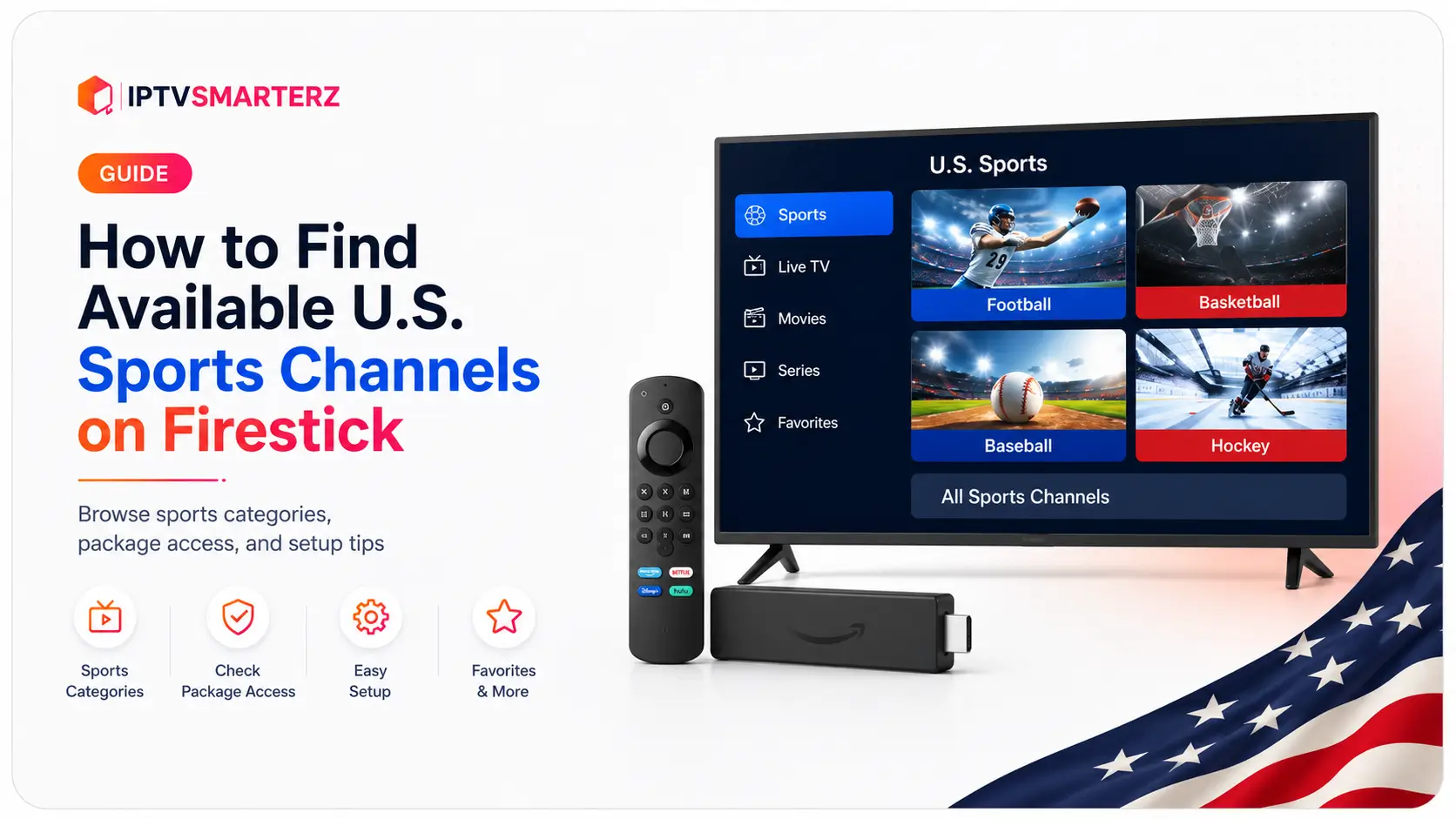
How to Find Available U.S. Sports Channels on Firestick
In this guide
Firestick users can access available U.S. sports channel categories through a compatible app and an active subscription that includes those channels. The player itself does not provide sports content. First confirm your package, install the correct Firestick app, sign in with the supplied details, then browse the sports categories inside the playlist.
This guide explains how to find available U.S. sports channels on Firestick, how to choose the right player, what to check when a channel is missing, and how to avoid confusion between an IPTV app and the subscription connected to it.
Availability notice: Sports channels, events, and regional feeds vary by package, location, licensing, schedule, and service availability. A channel name appearing in a guide does not guarantee that every game or event is available.
What You Need
- A regular Android-based Firestick, Fire TV Stick, or Fire TV Cube
- A compatible IPTV player
- An active subscription
- Valid Xtream Codes, M3U, or app-activation details
- A stable internet connection
- A package that includes the sports categories you want
Vega OS Fire TV Stick devices use a different app system. Check the Vega OS Fire TV Stick setup guide before following Android-based Firestick installation steps.
Common U.S. Sports Channel Categories
Depending on the package, users may look for categories related to national sports networks, football, basketball, baseball, hockey, college sports, combat sports, motorsports, golf, tennis, regional sports, and pay-per-view event listings when available.
Examples of well-known U.S. sports brands users may search for include ESPN, CBS, NBC, FOX, NFL Network, NBA TV, MLB Network, and NHL Network. Exact availability depends on the connected service and package.
1. Confirm Your Subscription Includes Sports
Installing an IPTV player does not add sports channels. The player only displays categories and streams included in the connected subscription.
- Confirm the subscription is active.
- Confirm the correct package is connected.
- Confirm sports categories are included.
- Confirm the login details belong to the intended subscription.
Review the IPTVSMARTERZ channel categories for current service information. Availability varies by package and region.
2. Choose a Compatible Firestick IPTV Player
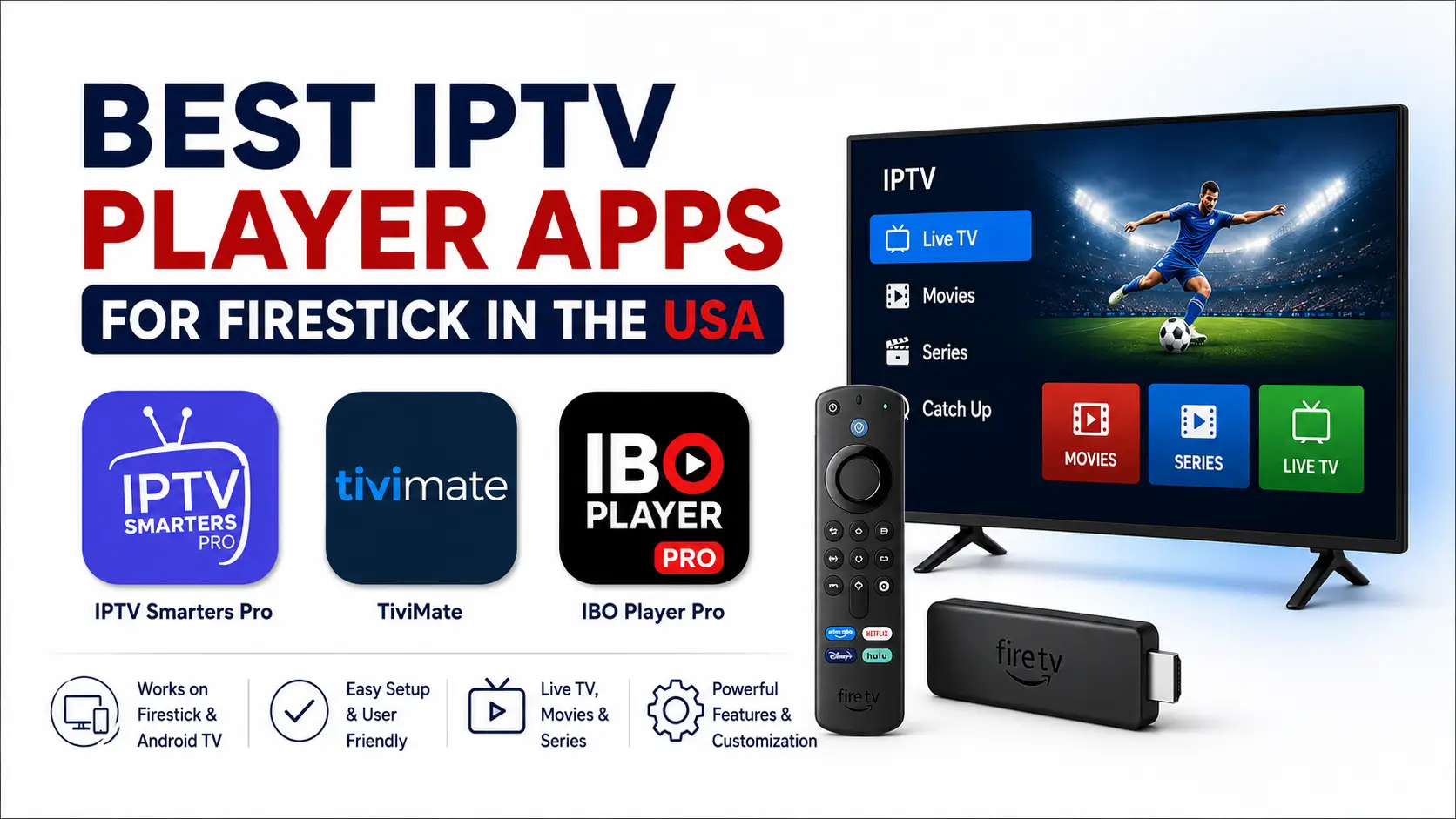
IPTV Smarters Pro, TiviMate, and IBO Player Pro are common options for compatible Firestick devices. Each app organizes categories differently.
IPTV Smarters Pro
Useful for simple Xtream Codes or M3U setup. Live TV, movies, series, favorites, and guide sections are usually separated clearly.
TiviMate
Useful for users who want a detailed TV guide, favorites, custom groups, search, recording options, and advanced navigation.
IBO Player Pro
Useful for users who prefer a premium app with MAC Address and Device Key activation on supported devices.
Compare options in the best IPTV player apps for Firestick guide.
3. Install the App Correctly
Follow the approved installation steps for your device and app. Do not install random APK files or unofficial modified versions.
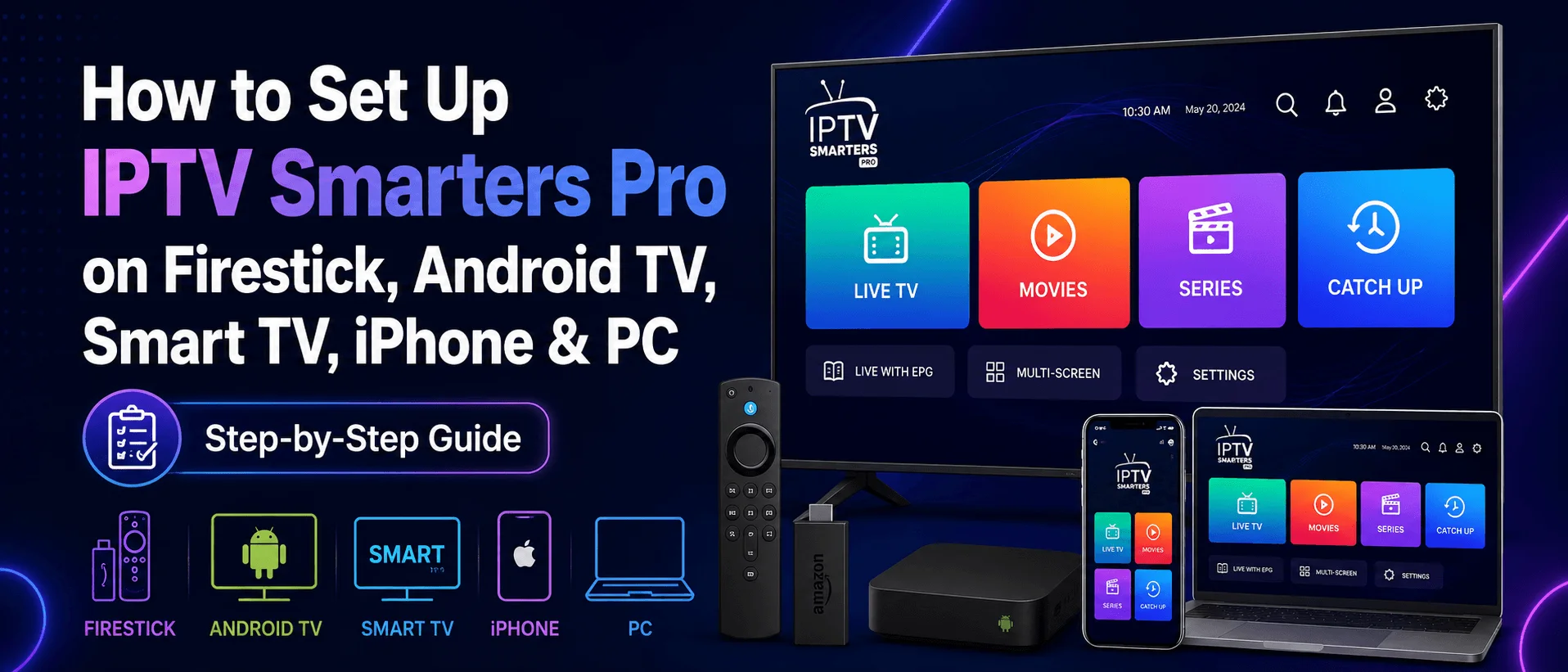
Use the IPTVSMARTERZ Firestick setup guide for regular Fire OS devices.
4. Sign In with the Correct Details
Xtream Codes
Enter the server URL, username, and password exactly as provided. Extra spaces or missing characters can prevent categories from loading.
M3U Playlist
Enter the complete M3U URL. An incomplete or expired link can cause missing categories or login failure.
MAC Address and Device Key
For apps such as IBO Player Pro, use the MAC Address and Device Key displayed inside the app. Do not use the physical Firestick network MAC address unless support specifically asks for it.
5. Find the Sports Categories
- Open the player.
- Select Live TV or the live-channel section.
- Open the category list.
- Look for sports, U.S. sports, league, network, or regional categories.
- Use search when the player supports it.
- Add frequently watched channels to Favorites.
Category names can vary. A channel may appear under a general sports category, a U.S. category, a network category, or a league-specific group.
6. Use Search and Favorites
Search by network name, league name, team city or region, sport name, or event name. Add working channels to Favorites so they remain easy to find later.
7. Check the TV Guide
The Electronic Program Guide can show scheduled programming when guide data is included. Refresh the EPG if listings are missing or outdated.
Guide information can be delayed or incomplete. Confirm major event times through an official league, team, or network source.
8. Why a Sports Channel May Be Missing
- The package does not include that channel.
- The playlist has not finished loading.
- The channel is placed in another category.
- The playlist or EPG needs refreshing.
- The channel name has changed.
- The event is carried by another network.
- The feed is temporarily unavailable.
- The subscription or login details are expired.
9. Refresh the Playlist and Guide
- Open the app settings.
- Select the playlist.
- Choose the playlist update option.
- Refresh the EPG.
- Wait for both updates to finish.
- Restart the app.
Do not delete and recreate the playlist before saving the login details.
10. Test Another Player
- If the channel appears in another player, refresh or reconfigure the first app.
- If the channel is missing in both players, check the package or contact support.
- If the channel appears but buffers in both players, test the network and source.
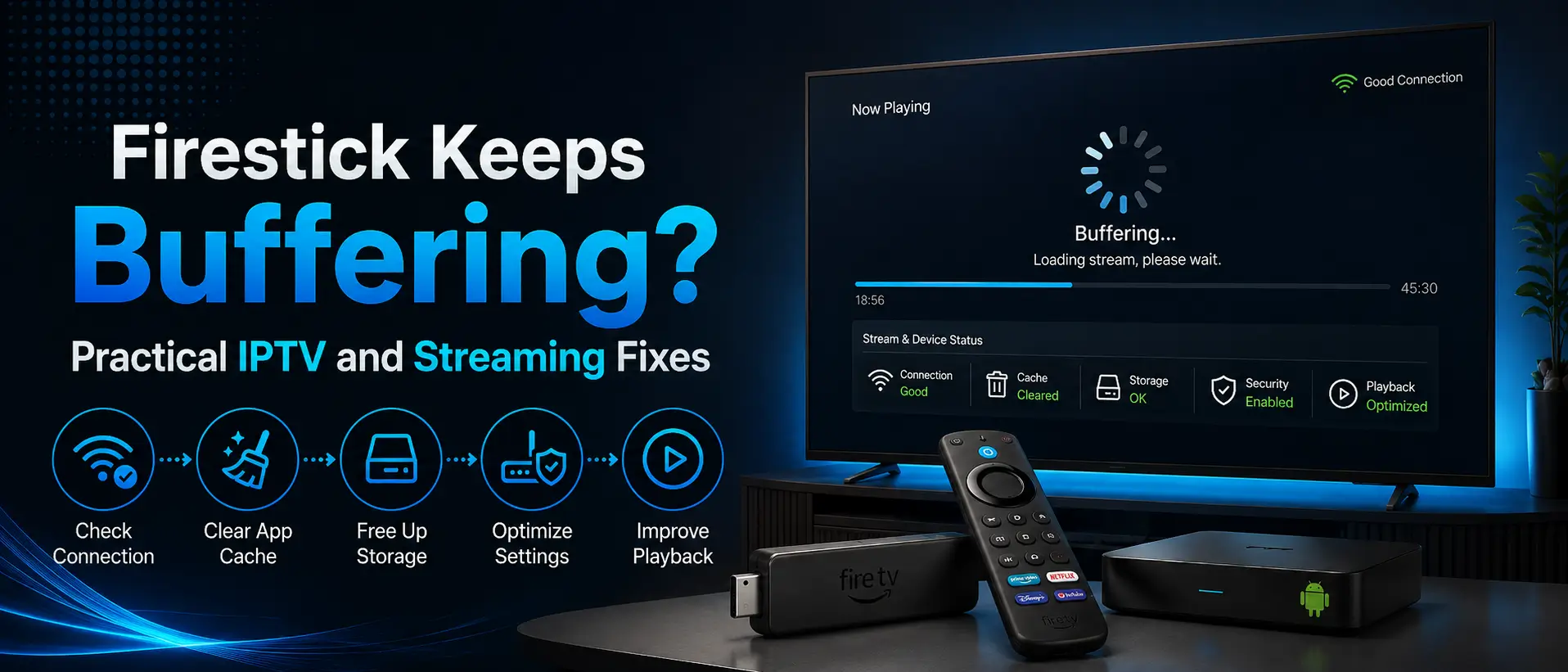
11. Fix Sports Channel Buffering
Live sports can expose weak Wi-Fi or overloaded devices because fast motion requires steady playback.
- Restart the Firestick and router.
- Clear the player cache, not app data.
- Free Firestick storage.
- Test another channel.
- Test 5 GHz and 2.4 GHz Wi-Fi.
- Test Ethernet when supported.
- Test a mobile hotspot.
- Check router security and filtering.
Read the Firestick buffering and IPTV troubleshooting guide for full steps.
12. Do Not Use a VPN by Default
A VPN can reduce speed, increase delay, or create a new route problem. Use one only when IPTVSMARTERZ support specifically asks you to test it.
13. Official League and Network Apps
Firestick users may also use official league or network apps when they have a supported subscription or provider login. Official app access, supported devices, blackout rules, and viewing rights vary by service.
IPTV players and official sports apps are separate. Logging in to one does not automatically unlock the other.
14. When to Contact IPTVSMARTERZ Support
- The sports category is completely missing.
- The subscription is active but no channels load.
- The same issue appears in two trusted players.
- The channel works on a hotspot but not home Wi-Fi.
- You receive an error message.
Include the Firestick model, app name, category or channel name, error screenshot, player-test result, hotspot result, and internet provider.
Never send passwords publicly. Use the official IPTVSMARTERZ contact page.
Related IPTVSMARTERZ Resources
Firestick Setup Guide | Best Firestick IPTV Players | TiviMate Guide | Firestick Buffering Fixes | Channel Categories | Subscription Plans | Request a Free Trial
Frequently Asked Questions
Can I watch U.S. sports channels on Firestick?
Yes, when a compatible app is installed and the connected subscription or official service includes the required channels.
Does IPTV Smarters Pro include sports channels?
No. IPTV Smarters Pro is a media player. Sports channels come from the separate subscription connected to it.
Does TiviMate include NFL, NBA, MLB, or NHL channels?
No. TiviMate does not include channels. It organizes and plays compatible playlists supplied separately.
Why can I find a channel but not the game?
The event may be carried by another network, affected by location or blackout rules, unavailable in the package, delayed, or not scheduled on that feed.
Why is the sports category missing?
The package may not include it, the playlist may need refreshing, the account may be expired, or the categories may use different names.
Should I use search or browse categories?
Use search first. Large playlists can place the same sports content under network, league, regional, or general sports categories.
Can I use more than one IPTV player?
Yes. A second trusted player can help determine whether a missing channel or playback issue is caused by the app.
Do I need a VPN for sports channels on Firestick?
Do not use a VPN by default. Test the network and mobile hotspot first, then follow support instructions.
Continue with IPTVSMARTERZ
Ready to start streaming? Choose a plan, request a trial, or follow a setup guide for your device.